Storing Uploaded Files and Serving Them in Express
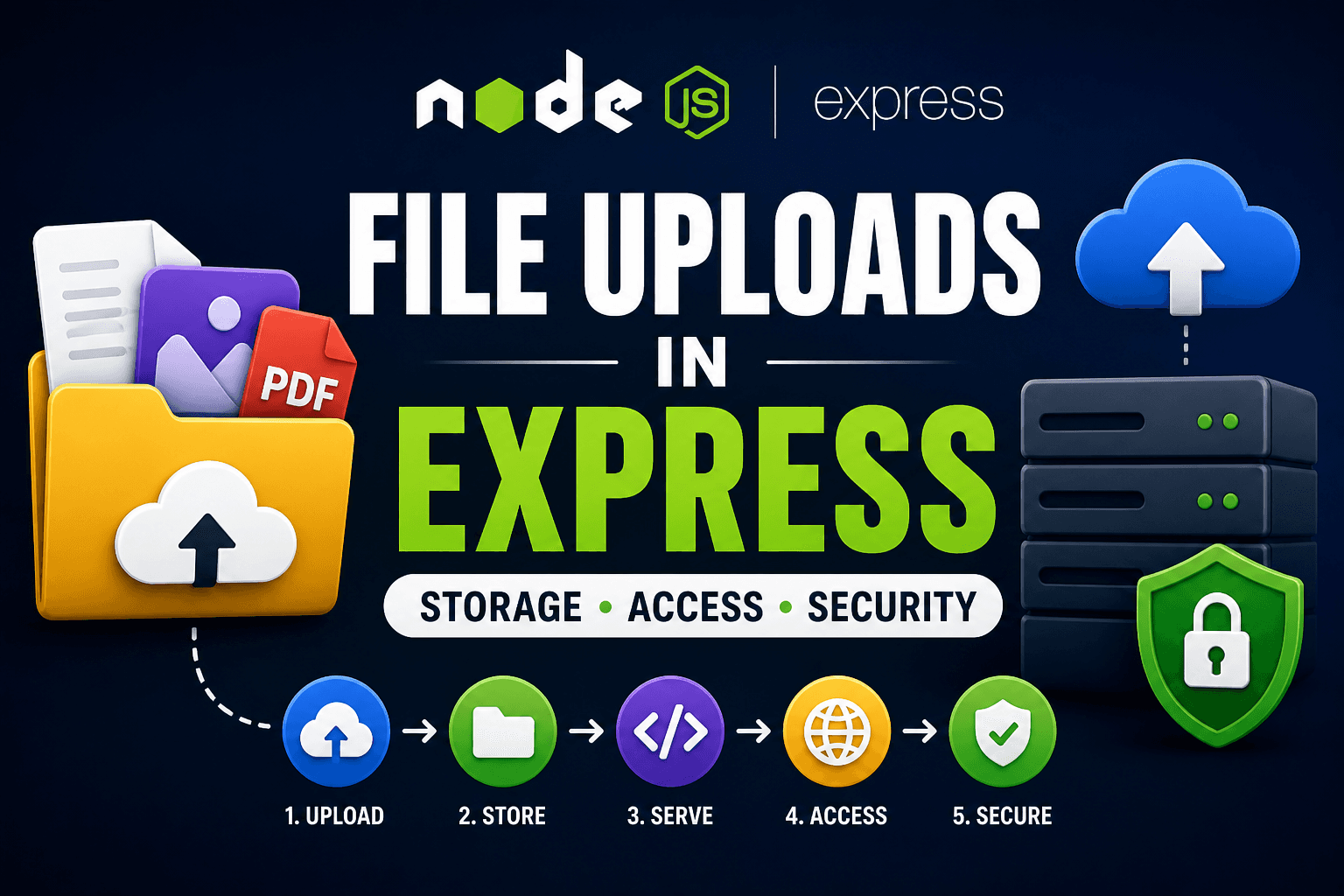
Handling file uploads is a core feature in many modern web applications—whether you're building a social platform, a document manager, or a SaaS dashboard. In an Express-based Node.js backend, file uploads involve more than just receiving files. You need to decide where to store them, how to serve them, and how to keep everything secure.
This article walks through the complete picture: storage strategies, static file serving, URL access, and best practices.
Where Uploaded Files Are Stored
When a user uploads a file (image, PDF, video, etc.), your server must store it somewhere. The two primary approaches are:
Local storage (server disk)
External storage (cloud services)
In most beginner or small-scale projects, files are stored locally inside a dedicated folder like /uploads.
Typical Folder Structure
project-root/
│
├── uploads/
│   ├── images/
│   │   ├── user1.png
│   │   └── user2.jpg
│   │
│   ├── documents/
│   │   └── resume.pdf
│
├── public/
├── server.js
└── package.json

Local Storage vs External Storage
Local Storage
Local storage means saving files directly on your server’s filesystem.
Advantages:
Simple to implement
No external dependency
Faster access within the same server
Disadvantages:
Limited disk space
Hard to scale across multiple servers
Risk of data loss if the server fails
External Storage (Cloud)
Instead of storing files locally, you can use cloud storage services like:
Amazon S3
Cloudinary
Google Cloud Storage
Advantages:
Highly scalable
Built-in redundancy and backups
CDN support for faster delivery
Disadvantages:
Requires setup and credentials
Costs can grow with usage
Slightly more complex integration
Rule of thumb:
Use local storage for development or small apps, and external storage for production-scale systems.
Serving Static Files in Express
Once files are uploaded and stored, users need a way to access them. This is where static file serving comes in.
What is Static File Serving?
Static files are files that are served directly to the client without any processing, like images, PDFs, or videos.
In Express, you can expose a folder so its contents are accessible via URLs.
Example:
const express = require("express");
const app = express();

// Serve uploads folder
app.use("/uploads", express.static("uploads"));

app.listen(3000);
Now, anything inside the uploads folder becomes publicly accessible.
Accessing Uploaded Files via URL
After setting up static serving, files can be accessed like this:
http://localhost:3000/uploads/images/user1.png
This mapping works as:
URL Path        →      Server Folder
/uploads/images →      uploads/images
Flow of File Access

Steps:
User uploads a file
The server saves it in
/uploadsExpress exposes
/uploadsas staticUser accesses file via URL
Server returns the file directly
Security Considerations for File Uploads
File uploads are a major security risk if not handled carefully. Here are essential practices:
1. Validate File Types
Never trust the file extension alone.
Allow only specific MIME types:
image/png,image/jpeg,application/pdf
2. Limit File Size
Prevent abuse by restricting upload size.
limits: { fileSize: 2 * 1024 * 1024 } // 2MB
3. Rename Files Safely
Avoid using original filenames directly.
Bad:
resume.pdf
Good:
1689239123-abc123.pdf
This prevents:
File overwriting
Path traversal issues
4. Prevent Executable Uploads
Never allow .js, .exe, .sh, etc.
Attackers can upload malicious scripts if unchecked.
5. Store Outside Root (Optional Advanced)
For extra safety:
Store uploads outside public directories
Serve them via controlled routes
6. Store Outside Root (Optional Advanced)
For extra safety:
Store uploads outside public directories
Serve them via controlled routes 6. Use Access Control
Not all files should be public.
Examples:
Profile images → public
Private documents → authenticated access only 7. Scan Files (Advanced)
Final Thoughts
File upload handling in Express is simple at first glance, but it becomes critical as your app grows. Choosing the right storage strategy, setting up static serving properly, and implementing strong security practices will save you from major issues later.
Start with a clean folder structure and local storage, but design your system in a way that can easily switch to cloud storage when needed.
If done right, your upload system will be:
Scalable
Secure
Easy to maintain